How to Download X (Twitter) Videos: GrabClip Tutorial
Many people run into the same problems when trying to save X (Twitter) videos:
- They are not sure which X video link to copy
- Some tools have too many steps and require installing an app
- They want to download directly on mobile or desktop, but the process feels inconvenient
- They are not sure whether the tool supports common link formats like x.com, twitter.com, or i/status
If you want a simpler way to save X (Twitter) videos, using a browser-based online tool is usually the most direct option.
GrabClip’s X (Twitter) video downloader page supports common X video link formats, with no software installation and no account registration required.
Tool page:
https://www.grabclip.com/twitter
What People Care About Most When Downloading X (Twitter) Videos
When users search for terms like “X video download,” “Twitter video download,” or “download X videos without login,” they usually care less about the tool name and more about questions like these:
- Does it support X (Twitter) video links?
- Does it work with common formats like
x.com/username/status/[id],x.com/i/status/[id], andtwitter.com/.../status/[id]? - Can the whole process be completed directly in a browser?
- Do I need to sign in to an X (Twitter) account?
- Does it work on Windows / Mac / iPhone / Android?
- Is the video quality clear, and can I save HD, original quality, or 1080P versions?
That is why a useful tutorial should not only tell users where to go, but also explain the full process clearly.
What GrabClip Is Useful For
If your goal is to save X (Twitter) videos, a browser-based tool like GrabClip is useful for situations like these:
- You want to download X (Twitter) videos
- You want to process X video links directly in your browser
- You do not want to install extra software or apps
- You want to finish the process quickly on desktop or mobile
- You want to save video materials for later reference, backup, or content organization
- You want a clearer version when HD / original quality / 1080P is available
For users who just want to save content quickly, a browser workflow is often more direct than installing software:
copy the link, open the page, paste it, and save the file.
Key Features of GrabClip
These are also some of the things many users pay attention to when choosing an X (Twitter) video downloader.
1. Works directly in your browser
There is no need to install software or an app.
Whether you are using a computer, tablet, or phone, you can start as long as you can open the page in a browser.
2. Supports common X (Twitter) video links
According to the current tool page, GrabClip supports common X video link formats, including:
x.com/username/status/[status-id]x.com/i/status/[status-id]twitter.com/username/status/[status-id]
If these are the kinds of video posts you usually save, the workflow is straightforward.
3. No login or registration required
GrabClip does not require account registration, and you do not need to sign in to X (Twitter) before processing video links.
4. Supports higher-quality downloads
The tool page indicates support for original quality, HD, and 1080P when available. This is useful for users who want clearer video files for reference or editing.
5. Better for everyday saving and content organization
Many users do not just want to watch a video once. They want to save it for inspiration, editing reference, social media research, or daily archiving.
A browser-based tool is often more convenient for these use cases.
How to Download X (Twitter) Videos
Here is the typical workflow.
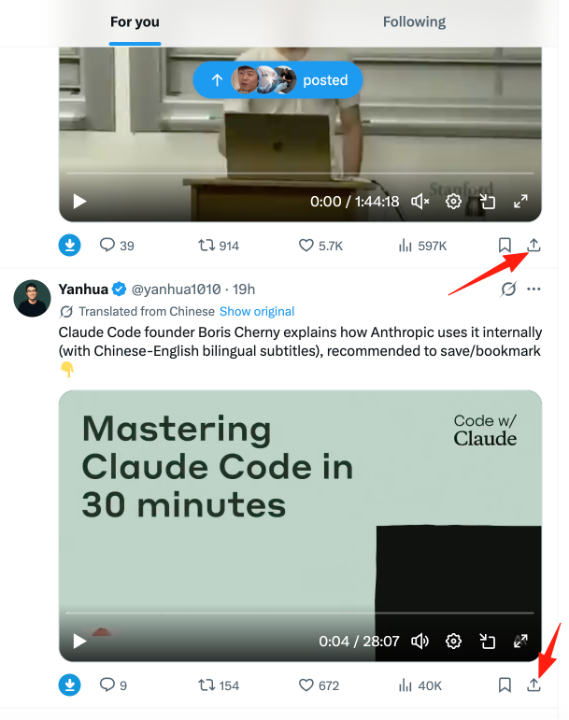
Step 1: Open X (Twitter) and find the video you want to save
You can find the content in the X app, or open X in your browser.
If the post contains a video, open that post first before copying the link.
Step 2: Copy the X (Twitter) video link
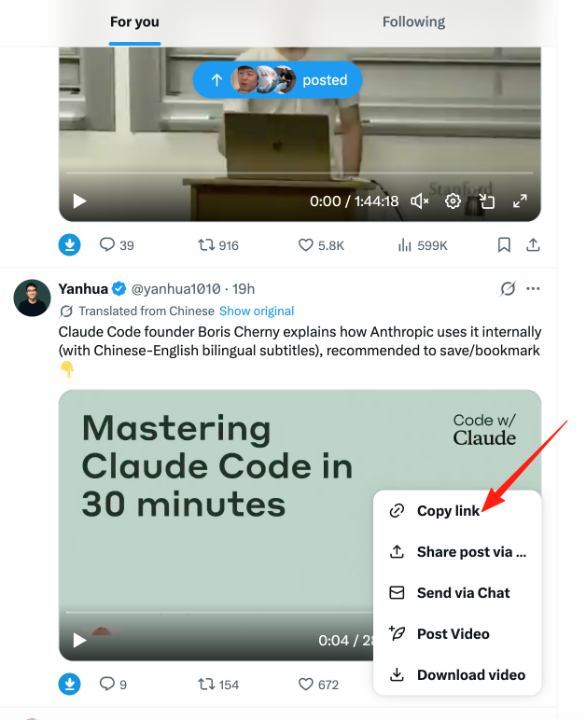
After finding the video you want to download on X (Twitter):
- Tap Share or More options
- Choose Copy link
- Save the link to your clipboard
GrabClip currently supports common link formats such as:
https://x.com/username/status/xxxxxxxxxhttps://x.com/i/status/xxxxxxxxxhttps://twitter.com/username/status/xxxxxxxxx
If you copy the full video post link, the next step is usually more straightforward.
Step 3: Open the GrabClip X page
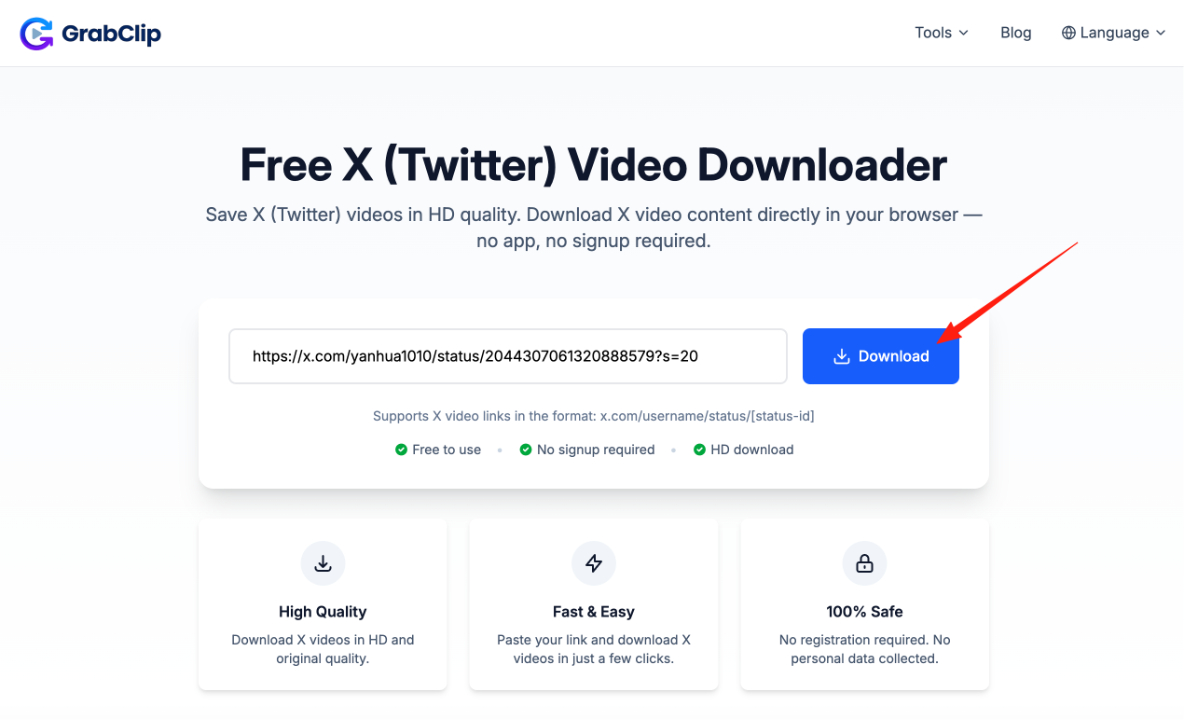
Go to the following page in your browser:
https://www.grabclip.com/twitter
This is the entry page for processing X (Twitter) video links.
It is a good idea to bookmark it for future use.
Step 4: Paste the link and click Download
Paste the X link you copied into the input box, then click the Download button to start processing.
According to the current tool page, video processing usually takes only 1–2 seconds.
If your network is stable, the whole process is usually quick.
Step 5: Save the video to your device
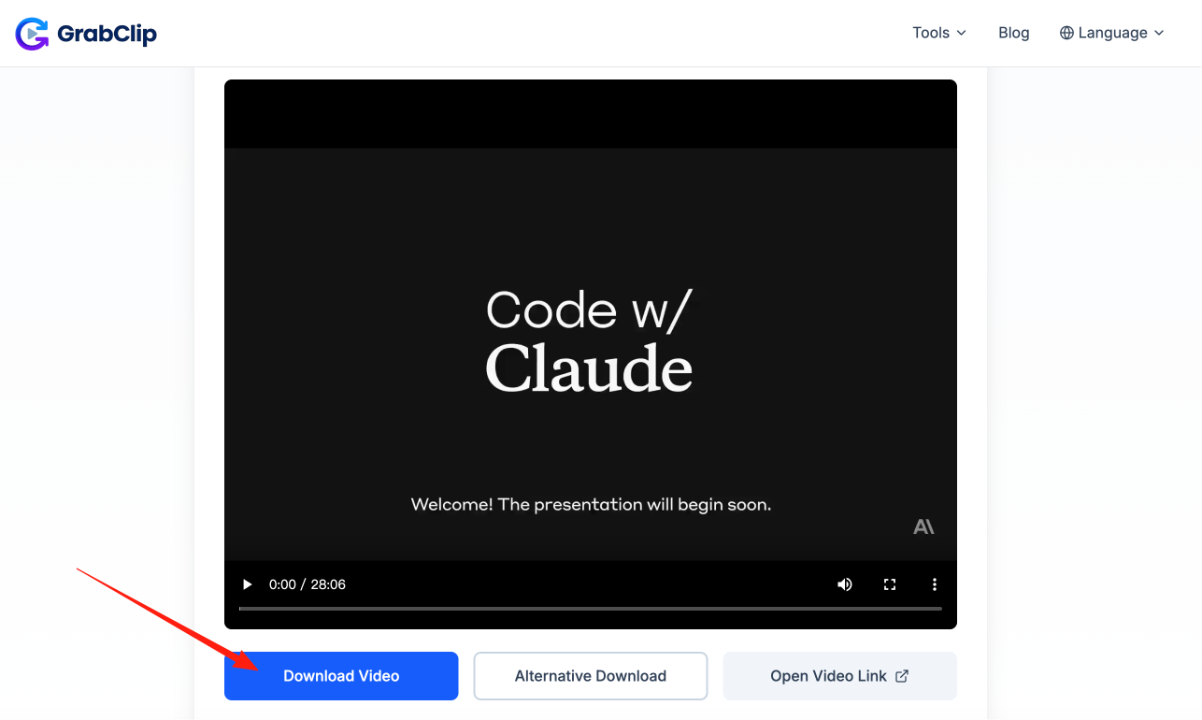
After the link is processed, you can choose the download option that fits your needs.
According to the GrabClip X tool page:
- The video is saved directly to your device
- It is provided in a common format that works across devices
- HD or 1080P versions may be available when supported
- Videos can be downloaded in MP4 format for broad compatibility
If multiple download options are shown, you can choose the one that works best for you.
What Types of X (Twitter) Video Links Are Supported
Based on the current tool page, GrabClip mainly supports these X video link formats:
- x.com/username/status/[id]
- x.com/i/status/[id]
- twitter.com/username/status/[id]
If these are the types of X video posts you usually save, the process is straightforward.
For protected accounts or private content, videos usually cannot be processed normally.
How to Improve Your Success Rate When Downloading X (Twitter) Videos
If you want the process to work more smoothly, these tips can help:
1. Make sure the copied link is complete
If the copied link is incomplete, processing may fail.
2. Use standard status links whenever possible
Links in the format x.com/.../status/... or twitter.com/.../status/... are usually more stable to process.
3. Keep your network connection stable
Sometimes slow processing is caused by network conditions rather than the tool itself.
4. Use the original video post link whenever possible
Try to copy the original X video post link directly instead of using redirected pages.
Who This Method Is Useful For
Handling X (Twitter) video links in a browser is useful for:
- Everyday users who want to save videos they like
- Content creators who need to organize video materials
- Social media operators and competitor researchers
- Teams collecting reference materials for editing or inspiration
- People who prefer managing files directly on desktop or mobile
Frequently Asked Questions
Can I download X (Twitter) videos?
Yes. GrabClip currently supports X (Twitter) video downloads.
What link formats are supported?
Common supported formats include x.com/username/status/[id], x.com/i/status/[id], and twitter.com/.../status/[id].
Do I need to install software or an app?
No. The full process can be completed directly in a browser.
Do I need to register an account?
No. GrabClip can be used without creating an account.
Can I use it on mobile and desktop?
Yes. It can be accessed from browsers on iPhone, Android, PC, Mac, and tablet devices.
Can I download higher-quality videos?
When available, GrabClip supports original quality, HD, and 1080P download options.
Conclusion
If you want an easier way to download X (Twitter) videos, a browser-based workflow is often the most direct option.
Copy the link, process it on the page, and save the file in just a few steps.
You can start here:
https://www.grabclip.com/twitter
For users who want to save X videos, organize video materials, back up content, or collect creative references, this method is practical for everyday use.