How to Download TikTok Audio Online and Save It as MP3
Many people save TikTok videos because they want to keep the visual content. But sometimes, what you really need is the sound.
You may want to save a TikTok voiceover, background sound, music clip, interview audio, or spoken tutorial. Instead of recording your screen or installing a separate app, an easier way is to copy the TikTok video link and use an online TikTok audio downloader.
With GrabClip TikTok Downloader, you can paste a TikTok video link into the browser and download the available audio from the video.
Tool page:
GrabClip TikTok DownloaderWhy Download Audio from a TikTok Video?
TikTok videos often include useful audio content, such as:
- Voiceovers
- Music clips
- Podcast-style short videos
- Educational explanations
- Interviews
- Product reviews
- Funny sounds or memes
- Spoken tips and tutorials
In many cases, you may not need the full video. Saving the audio file can make it easier to listen later, organize reference materials, or use the sound in your own personal workflow.
For example, if you find a TikTok video with useful spoken content, downloading the audio lets you listen to it while working, studying, or editing your own notes.
Can You Download TikTok Audio as MP3?
You can download the available audio from many TikTok videos using an online tool like GrabClip.
The exact audio format may depend on the source video and the available download options. In many workflows, users refer to this process as “TikTok to MP3” because they want to save the TikTok sound as a standalone audio file.
With GrabClip, the basic process is simple:
- Copy the TikTok video link.
- Paste the link into GrabClip TikTok Downloader.
- Click the Download button.
- On the result page, choose Download Audio.
- Save the audio file to your device.
If you specifically need an MP3 file and the downloaded audio is in another format, you can convert the audio to MP3 later with an audio converter or editing tool.
How to Download TikTok Audio Online with GrabClip
Follow these steps to download audio from a TikTok video.
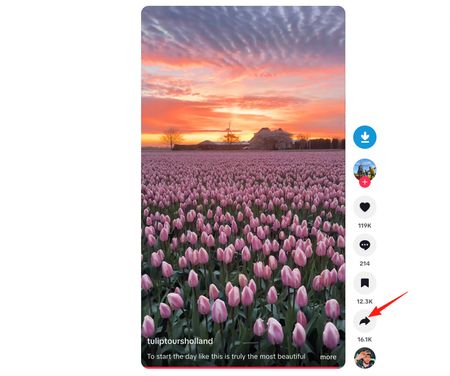
Step 1: Open the TikTok Video and Click Share
First, open the TikTok video that contains the audio you want to save.
On the right side of the TikTok video page, click the Share button.
This is the arrow-shaped button usually shown below the comment and save buttons.
Step 2: Copy the TikTok Video Link
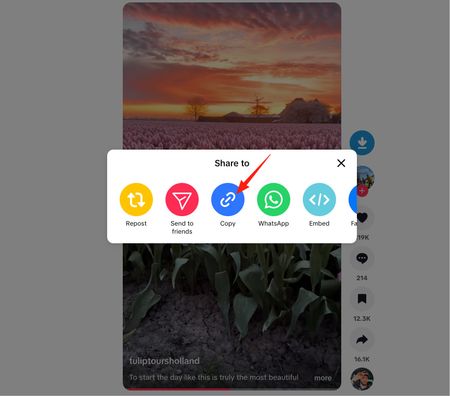
After clicking the Share button, TikTok will open a sharing menu.
Click the Copy button to copy the TikTok video link.
Make sure you copy the direct video link, not just the creator profile page or a general TikTok page.
Step 3: Paste the Link into GrabClip TikTok Downloader
Next, open the GrabClip TikTok tool page:
https://www.grabclip.com/tiktok
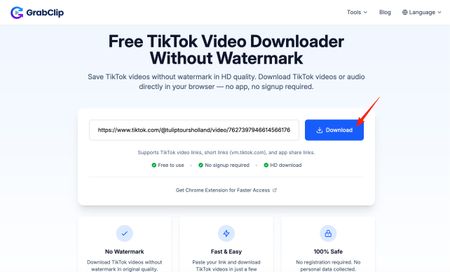
Paste the TikTok video link into the input box.
Then click the Download button.
GrabClip will process the TikTok link and prepare the available download options.
Step 4: Click Download Audio
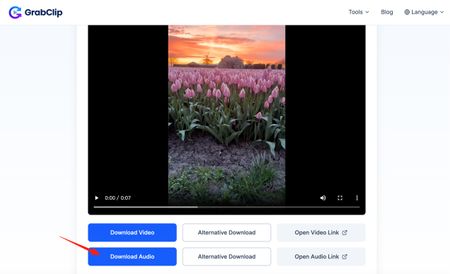
After the TikTok link is processed, GrabClip will show a result page with video and audio download options.
To save only the sound from the TikTok video, click Download Audio.
This lets you download the available audio file without downloading the full video.
Step 5: Save the Audio File to Your Device
After clicking Download Audio, your browser will start saving the audio file.
On desktop, the file usually appears in your Downloads folder.
On mobile, the file may be saved to your browser downloads, the Files app, or your device’s download folder depending on your browser and system settings.
After downloading, you can rename the file, move it into a folder, or import it into an editing app.
How to Save TikTok Audio as MP3
If the downloaded audio file is already in MP3 format, you can use it directly.
If the audio is saved in another format, you can convert it to MP3 later using an audio converter, media player, or editing software.
MP3 is often preferred because it is:
- Easy to play on most devices
- Small in file size
- Supported by many audio editors
- Convenient for offline listening
- Easy to organize and share for personal use
So the practical workflow is:
- Download the TikTok audio with GrabClip.
- Check the downloaded file format.
- If needed, convert the audio file to MP3.
- Save or rename the MP3 file for later use.
How to Download TikTok Audio on iPhone
You can download TikTok audio on iPhone using a browser.
Here is the basic process:
- Open the TikTok app or TikTok website.
- Tap the Share button.
- Tap Copy to copy the video link.
- Open Safari or Chrome.
- Go to GrabClip TikTok Downloader.
- Paste the TikTok link.
- Tap Download.
- Tap Download Audio on the result page.
After downloading, check the Files app or your browser download list.
If the file does not appear immediately, open your browser’s download list and save the file manually.
How to Download TikTok Audio on Android
The process on Android is similar.
- Open the TikTok video.
- Tap Share.
- Tap Copy to copy the link.
- Open Chrome or another mobile browser.
- Visit GrabClip TikTok Downloader.
- Paste the TikTok link.
- Tap Download.
- Choose Download Audio.
On Android, downloaded files are usually saved in the Downloads folder. You can find them using your file manager app.
How to Download TikTok Audio on PC or Mac
If you are using a computer, downloading TikTok audio is even easier.
- Open TikTok in your browser.
- Click the Share button on the TikTok video.
- Click Copy to copy the video link.
- Open GrabClip TikTok Downloader.
- Paste the video link.
- Click Download.
- Click Download Audio on the result page.
This is useful if you want to organize TikTok audio files, import them into editing software, or save reference clips on your computer.
Audio vs Video: Which One Should You Download?
If you only need the sound, downloading audio is usually better than downloading the full video.
An audio file is:
- Smaller than a video file
- Easier to store
- Easier to play in audio apps
- More convenient for listening
- Useful for editing workflows
A video file is better when you need both the visuals and the sound.
For example, if you want to keep a TikTok tutorial for later viewing, download the video. If you only need the voiceover, background sound, or spoken content, download the audio file instead.
Why TikTok Audio Download May Not Work Sometimes
Sometimes a TikTok audio download may fail or show fewer download options than expected.
Common reasons include:
- The TikTok video link is invalid
- The video has been deleted or made private
- The video is restricted in some regions
- TikTok has changed how the video is delivered
- The audio is not available separately
- The browser blocks the download
- The network connection is unstable
If this happens, try copying the link again, refreshing the page, or using another browser.
You can also test whether the TikTok video itself can still be opened normally. If the original video is no longer available, the audio may not be available either.
Tips for Saving TikTok Audio More Easily
Here are a few simple tips:
- Always copy the direct TikTok video link.
- Use a modern browser such as Chrome, Safari, or Edge.
- Click Download Audio if you only need the sound.
- Rename the audio file after downloading so you can find it later.
- Create folders for different types of saved audio.
- Check your device’s download folder if the file does not open automatically.
- Convert the file to MP3 later if you specifically need MP3 format.
These small habits can make it easier to manage TikTok audio files, especially if you download sounds regularly.
Is It Legal to Download TikTok Audio?
TikTok videos and sounds may be protected by copyright or belong to their original creators.
You should only download TikTok audio when you have the right to do so, such as:
- Your own TikTok videos
- Audio you have permission to use
- Content allowed for personal reference
- Public content you are saving for private, non-commercial use where permitted
Do not reuse, repost, sell, or redistribute copyrighted music, creator audio, or other protected content without permission.
GrabClip is a browser-based tool for processing links. You are responsible for using downloaded content legally and respecting the rights of creators and copyright owners.
FAQ
Can I download TikTok audio without installing an app?
Yes. You can use an online TikTok audio downloader like GrabClip in your browser. Copy the TikTok video link, paste it into the tool page, click Download, and then choose Download Audio.
Can I save TikTok audio as MP3?
You can download the available TikTok audio file with GrabClip. If the downloaded file is not MP3, you can convert it to MP3 later with an audio converter or editing tool.
Can I download only the audio from a TikTok video?
Yes. After GrabClip processes the TikTok link, choose Download Audio to save the audio instead of the full video.
Can I download TikTok audio on iPhone?
Yes. Copy the TikTok video link, open GrabClip in Safari or Chrome, paste the link, tap Download, and choose Download Audio.
Can I download TikTok audio on Android?
Yes. Android users can copy a TikTok video link, open GrabClip in a mobile browser, and download the audio file to the Downloads folder.
Do I need a TikTok account to download audio?
In most cases, you do not need to log in to GrabClip. You only need a valid TikTok video link.
Why can’t I download audio from some TikTok videos?
Some videos may be private, deleted, region-restricted, or unavailable. In other cases, the audio may not be provided as a separate downloadable option.
What is the best format for TikTok audio?
MP3 is usually the most convenient format because it works on most devices, music players, and editing tools. If another audio format is downloaded, you can convert it to MP3 later if needed.
Can I use downloaded TikTok audio in my own videos?
Only if you have permission or the rights to use that audio. Do not reuse copyrighted music, creator voiceovers, or protected content without authorization.
Final Thoughts
Downloading audio from a TikTok video is useful when you only need the sound, not the full video.
With GrabClip TikTok Downloader, you can copy a TikTok video link, paste it into the browser, click Download, and then choose Download Audio to save the available audio file.
Start here: